How to Hide and Show Org Chart Levels in TeamOrgChart
A chart containing hundreds or thousands of employees can be difficult to navigate and understand if every department and every person is displayed at the same time.
Different users and different charts may require different levels of detail. An executive may only want to view the high-level management structure, whereas a department lead may want to see more of the organization at once.
Hiding and showing levels is not the same as deleting people from the chart. You are only controlling how much of the hierarchy is visible to the user, without changing the underlying reporting structure.
Temporarily hide and show levels
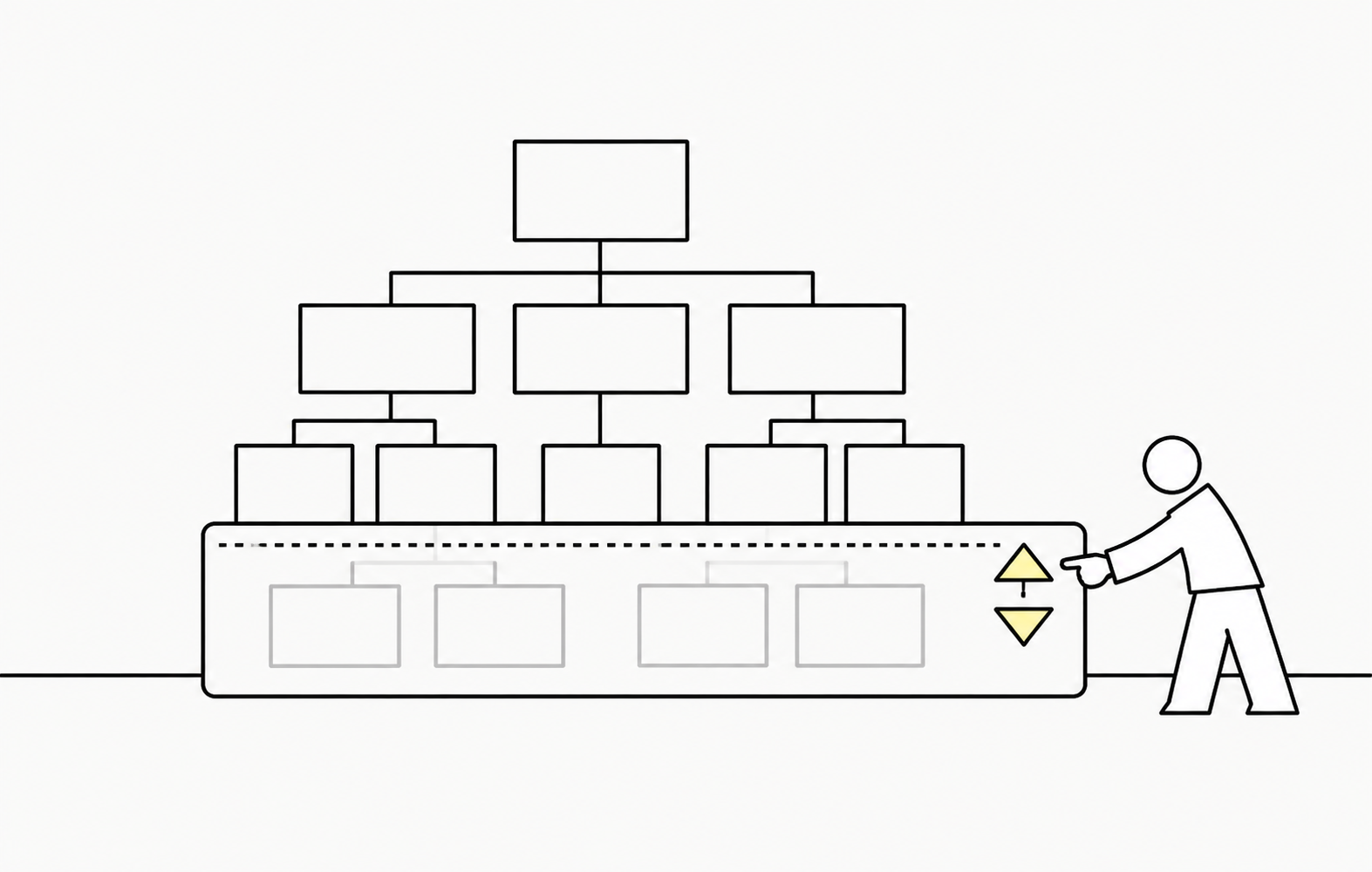
While viewing a chart, you can choose how many levels of the organization are displayed by using the hide and show levels controls on the chart toolbar.
These controls increase or decrease the depth of the organizational structure shown on screen, making it easier to focus on the amount of detail you need.
The selected depth will persist as you navigate through the chart during your current session. However, if you leave the chart and return later, the display will reset to the chart's configured default depth.
Set a persistent default chart depth
You can also set the default depth for each organization chart. This setting can be configured independently for every chart, allowing different charts to open with different levels of detail.
The default chart depth is persistent and determines how much of the organization is displayed when a user opens or returns to the chart.
To set the default chart depth:
- Enter Edit Mode.
- In the side panel, expand the Chart Behavior section.
- Set the required Chart Depth.
This allows you to control the default level of detail shown in each chart, while still giving users the flexibility to temporarily show more or fewer levels when they need to.