
Assigning Administrators in TeamOrgChart via Microsoft Entra ID
Learn how to assigned chart administrator rights directly through Microsoft Entra ID.
Administrator rights to TeamOrgChart can be assigned directly through Microsoft Entra as well as directly inside TeamOrgChart.
This approach allows you to integrate with any existing access policies, lifecycle management, and audit trails that your organization may require.
It also means the person granting the rights (typically an IT administrator) does not need to have access to TeamOrgChart themselves — they can manage permissions entirely through Microsoft Entra, just as they do for other enterprise applications.
Assigning admins directly inside TeamOrgChart is also supported and can be useful for smaller organizations or pilot projects, where application owners want to manage access themselves without involving central IT. This guide Adding explains the steps to do this.
This makes the two methods complementary — Microsoft Entra for centralized, policy-driven control, and in-app assignment for local administration.
This guide walks through the steps required to assign an administrator via Microsoft Entra.
1. Open Microsoft Entra ID Admin Center
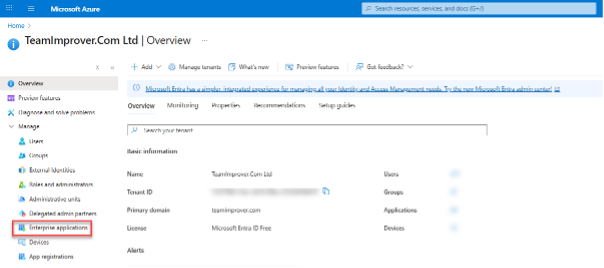
Begin by going to entra.microsoft.com or by accessing Entra ID via portal.azure.com and signing in with your Microsoft Account.
2. Locate TeamOrgChart
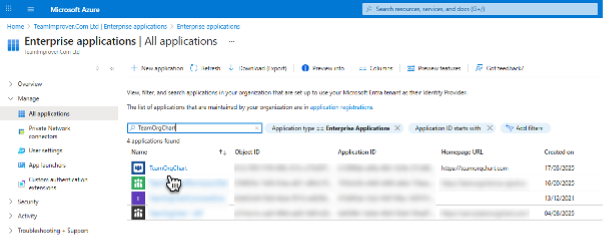
From the left menu, select Enterprise Applications, then in the search box type TeamOrgChart and select it from the results.
3. Open Users and Groups
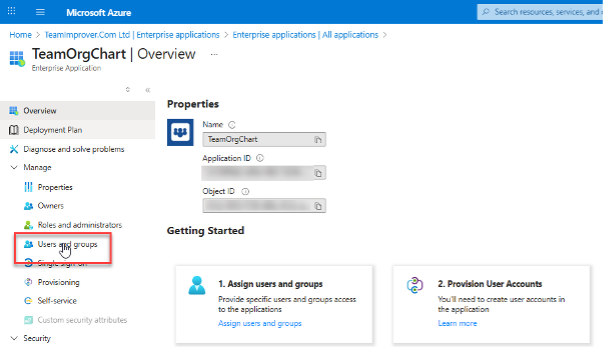
On the TeamOrgChart application page, select Users and Groups.
4. Add a User
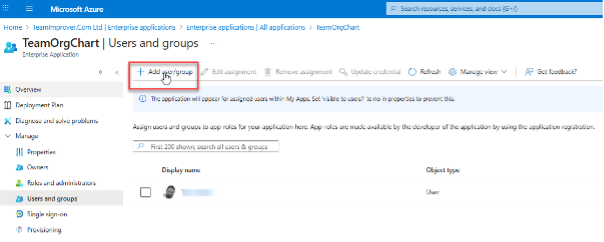
Click the +Add user/group button from the menu bar and then search for and locate the user(s) to who you need to grant administrative rights.
Assign the Chart Administrator Role
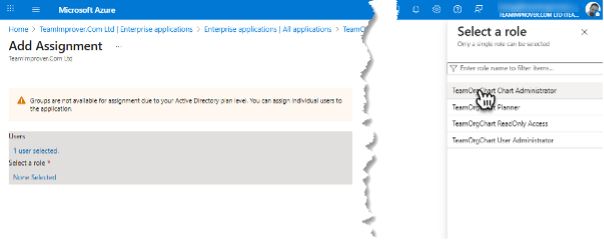
Once a user has been selected, choose the Select a role option and choose TeamOrgChart Chart Administrator from the list of available roles.
Finally, save and apply the changes.