Microsoft Teams Org Chart: Org Explorer vs Dedicated Org Chart Apps
Looking for a Microsoft Teams org chart? Compare Org Explorer with a dedicated org chart app for Microsoft 365.
A Microsoft Teams org chart helps employees understand reporting structures and see how departments connect across the organization.
Microsoft Teams includes Org Explorer for quick “who reports to who” lookups, while dedicated Microsoft 365 org chart apps such as TeamOrgChart are designed for full organizational chart creation, with more control over who is displayed, styling and sharing.
What does Microsoft Teams provide out of the box?
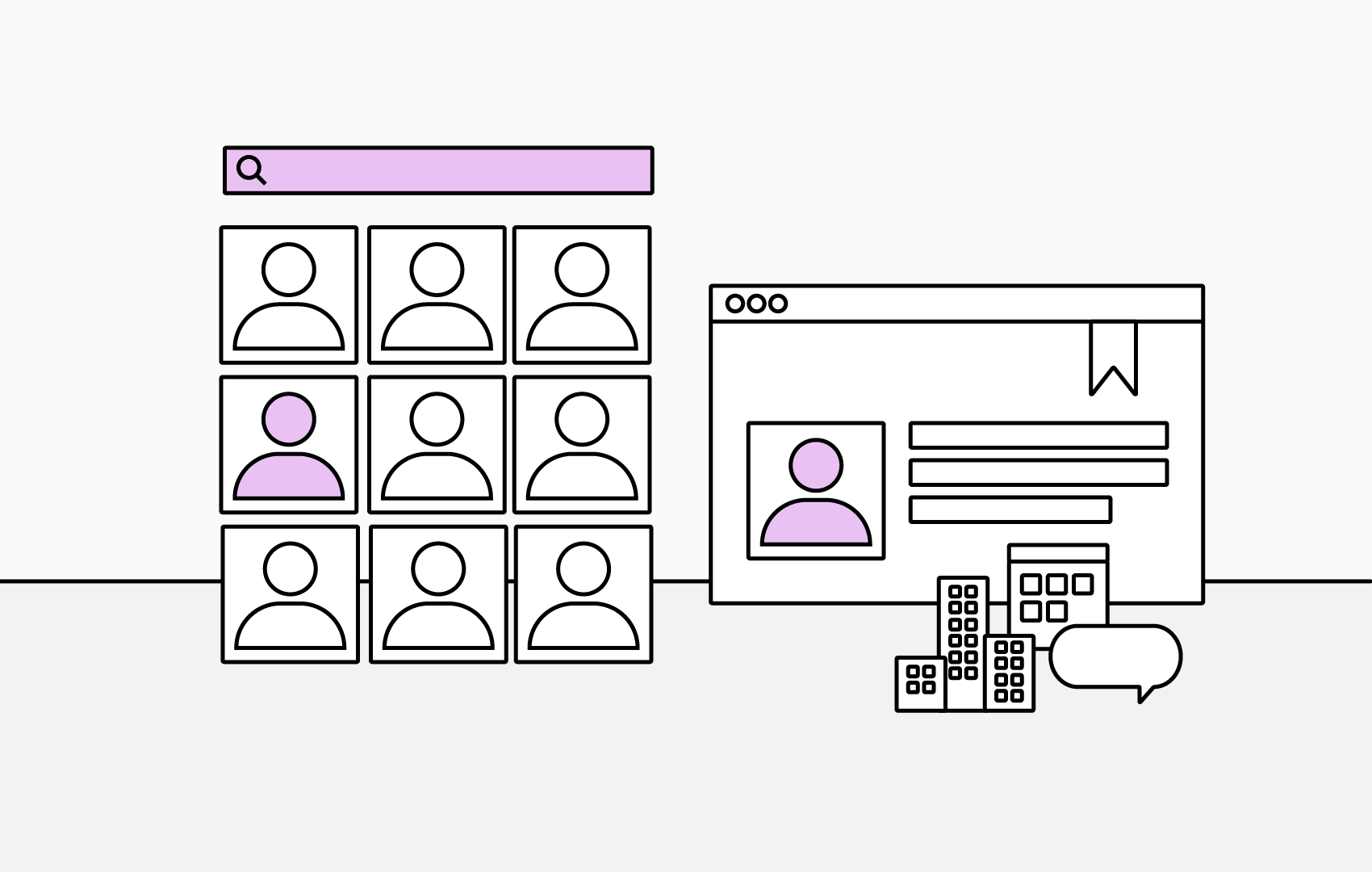
Microsoft Teams’ built-in option is Org Explorer. It sits inside Teams and pulls reporting relationships from Microsoft Entra ID (formerly Azure Active Directory).
It is designed for instant access to organizational structure information. Simply search for someone or click on their profile to quickly identify their manager chain, peers, and direct or indirect reports.
How to install Org Explorer
Org Explorer is available inside Teams for Microsoft 365 users, depending on your tenant configuration and rollout. In many cases, you can access it directly within Teams without any separate deployment.
- Open the app catalog from your app bar
- Search for “Org Explorer”
- Click Add to Teams
- For easy access, pin it to your app bar by right-clicking the icon and selecting “Pin”
Note: If the app is not available, your administrator may need to enable the feature or confirm that the correct Microsoft 365 settings are in place.
Key features
- Search by person to view their position in the organization
- View manager chains (upward view) and reports (downward view)
- Identify peers within the same reporting line
- Simple people search
- View frequent collaborators
- Quickly start a conversation directly in Teams
Benefits
If reporting lines, job titles, and departments are well maintained in Entra ID, Org Explorer provides accurate, low-friction results for everyday employee lookups.
- Answer basic reporting questions easily
- Quickly identify the right person to contact
- Check who is responsible for a project or team
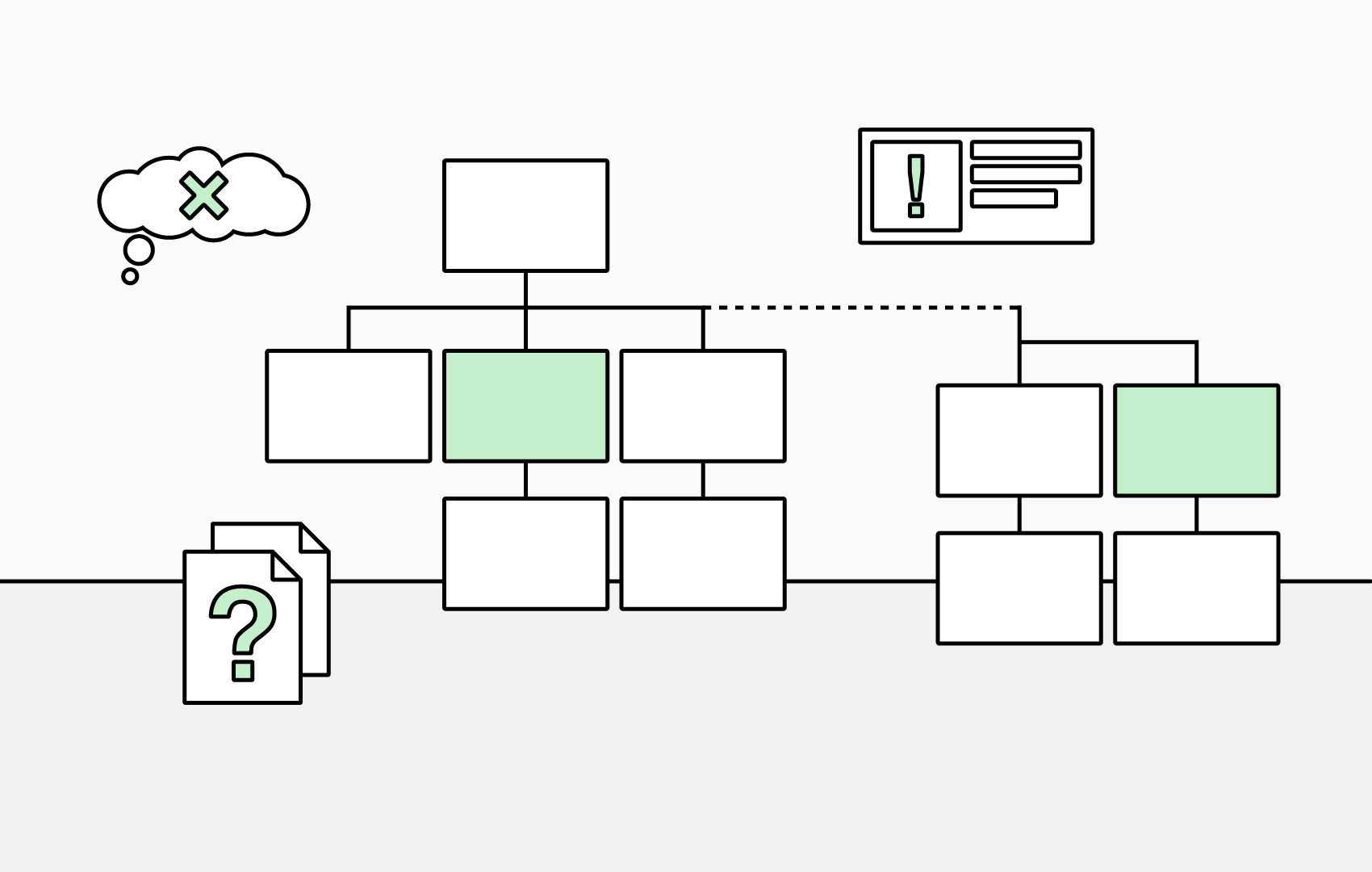
Where the built-in org chart falls short
- Focuses on one reporting chain at a time
- Limited to Microsoft Entra ID as a data source
- No full-company org chart view
- No company-wide publishing view
- No support for vacant or temporary planning roles
- No annotations or collaboration on chart boxes
- No print or export options
While convenient for quick checks, many organizations outgrow the built-in experience when they need planning, publishing, or presentation-ready charts.
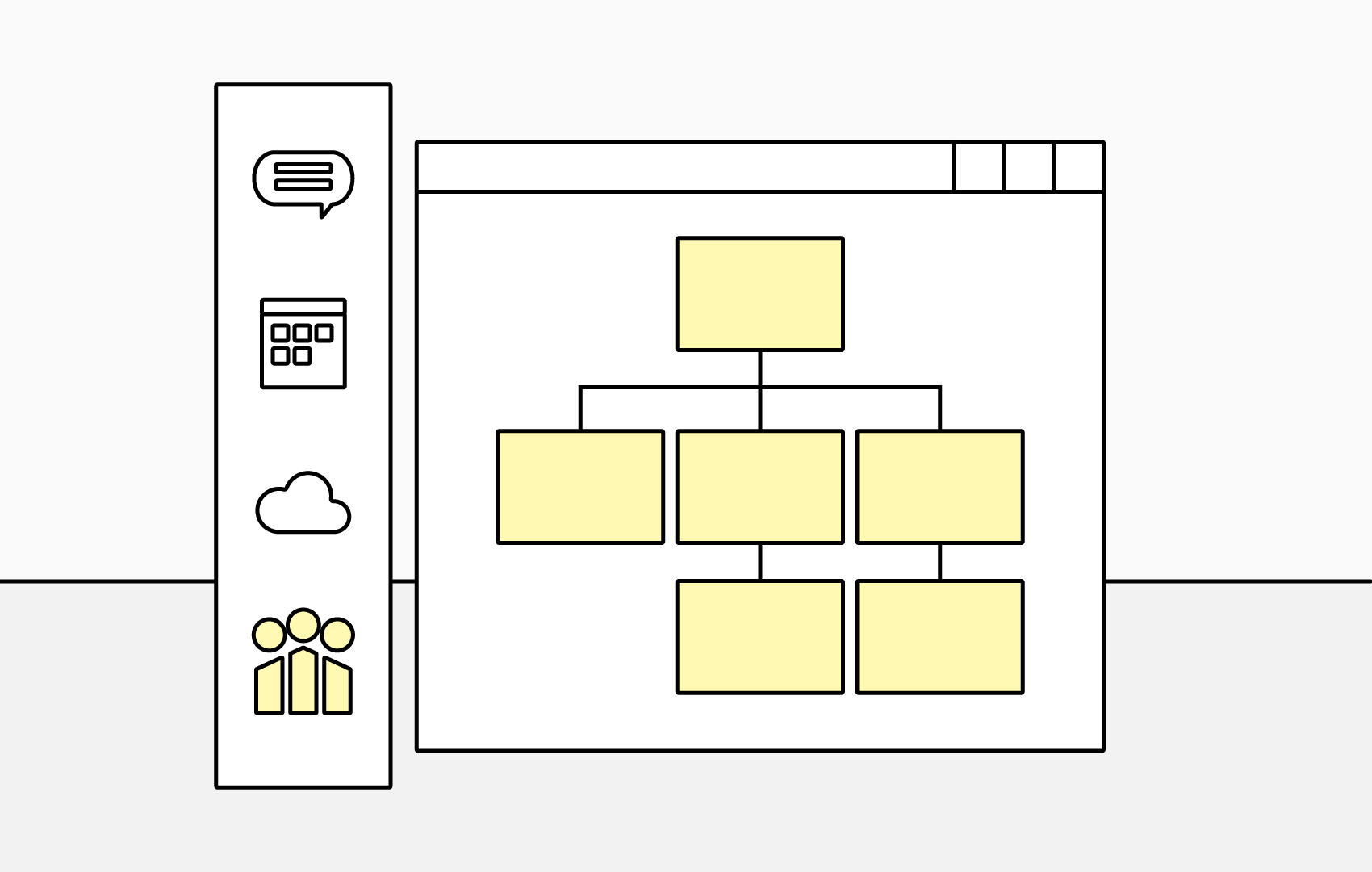
Benefits of a dedicated org chart app
- Bring in data from multiple sources – including Entra ID, Excel spreadsheets, SharePoint lists, or databases.
- Navigation and sharing built for real usage – with advanced filtering, multiple charts, annotations, embedding, and export options.
- More customization – apply conditional rules, exclude specific people or roles, and adjust styling and layout options to suit your workflow.
- Support for temporary and vacant roles – plan more effectively for organizational change.
A dedicated app like TeamOrgChart supports conditional styling, saved views, vacant roles, temporary boxes, and exports to PDF, PNG, or SVG, including multi-page reports for large hierarchies.
Comparison
The table below summarizes the key differences between Microsoft Teams’ built-in Org Explorer and a dedicated org chart application.
| Capability | Org Explorer | TeamOrgChart |
|---|---|---|
| People search | ||
| View reporting lines | ||
| Start a conversation | ||
| Employee profiles | ||
| Microsoft presence | ||
| Conditional styling | ||
| Range of data sources | ||
| Vacant positions | ||
| Temporary positions | ||
| Multiple charts | ||
| Annotations | ||
| Export and embed options | ||
| Multi-page PDF reports |
Choosing the right Microsoft Teams org chart solution
Microsoft Teams’ built-in Org Explorer works well for quick employee lookups. If you simply need to see who someone reports to, identify peers, or start a conversation, the built-in experience may be enough.
However, many organizations eventually need more than a simple reporting-line view. HR teams, managers, and administrators often need full company org charts, planning tools for vacant roles, and a way to share clear, presentation-ready charts across departments.
In those cases, a dedicated Microsoft 365 org chart app like TeamOrgChart offers more flexibility, making it easier to build complete charts, customize layouts, use multiple data sources, and publish org charts across the organization.
Start a free trial of TeamOrgChart to see how quickly you can create, customize, and share professional org charts in Microsoft Teams and Microsoft 365.